개요
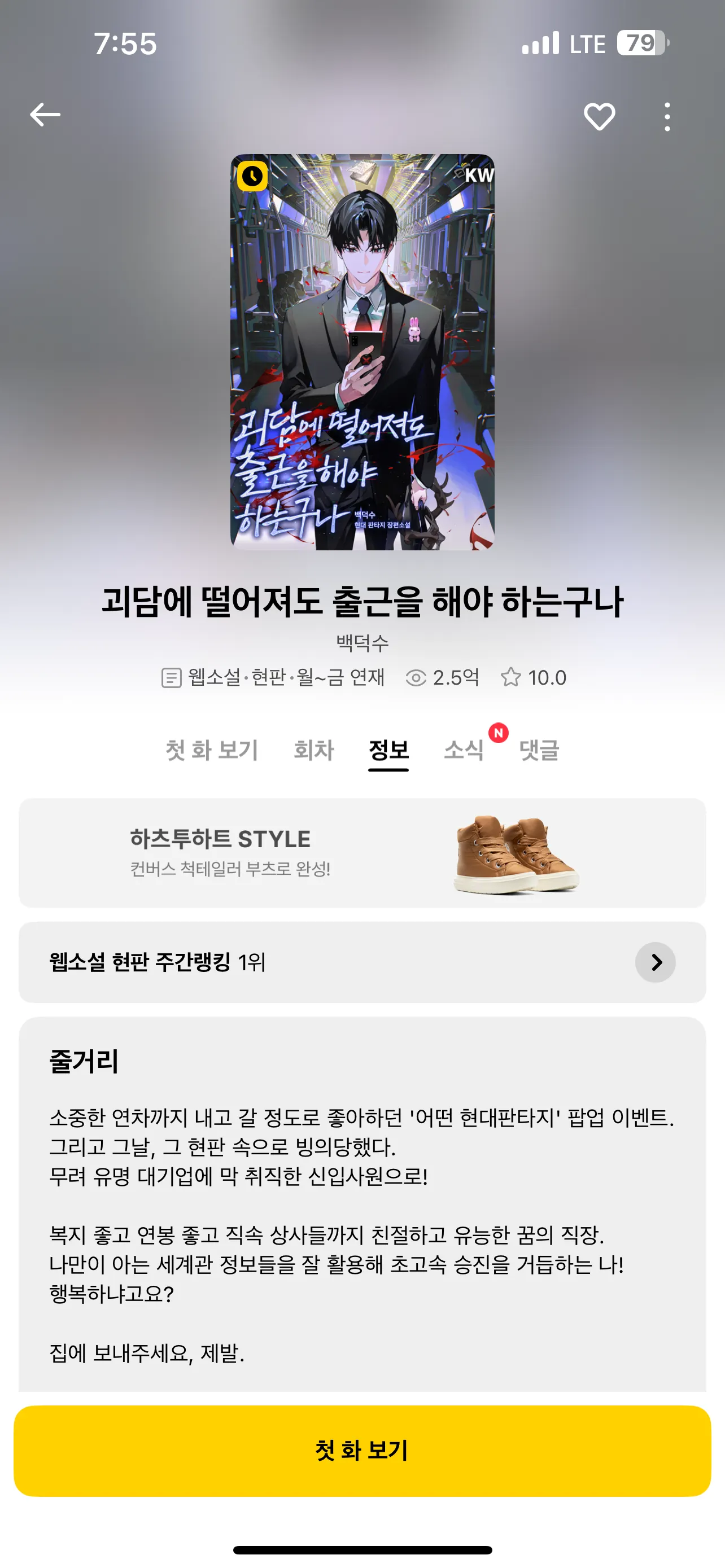
중첩 스크롤 뷰는 인스타그램 프로필이나 웹툰, 웹소설 앱과 같은 화면에서 흔히 볼 수 있는 UI 패턴이다.
상단의 정보 뷰가 스크롤에 따라 사라지고, 탭 바가 상단에 고정되며, 그 아래에 컬렉션 뷰가 표시되는 구조다.
(카카오 페이지 웹소설 상세 페이지)
구현
영상
구조 설계
계층 구조
UIViewController
└── mainScrollView (메인 스크롤 뷰)
    └── contentStackView (수직 스택 뷰)
        ├── infoView (정보 뷰)
        ├── stickyTabContainer (탭 컨테이너)
        └── collectionView (컬렉션 뷰)
메인 스크롤 뷰 안에 모든 컨텐츠가 들어가며, 스택 뷰를 사용해 수직으로 배치한다.
핵심은 collectionView의 스크롤을 비활성화하고, contentSize 변경을 관찰해서 높이를 동적으로 조정하는 것이다.
구현
베이스 클래스
open class NestedScrollViewController: UIViewController {
    public private(set) var mainScrollView: UIScrollView!
    public private(set) var collectionView: UICollectionView!

    public var tabHeight: CGFloat { return 50 }
    open var infoViewHeight: CGFloat {
        return UIScreen.main.bounds.height / 2
    }
}
베이스 클래스를 open으로 선언하여 서브클래싱 가능하게 만들고, 커스터마이징 포인트를 제공
CollectionView 높이 동적 조정
private func observeContentSize() {
    contentSizeObservation = collectionView.observe(\.contentSize, options: [.new]) { [weak self] _, change in
        guard let self = self, let newSize = change.newValue, newSize.height > 0 else { return }

        self.collectionViewHeightConstraint?.update(offset: newSize.height)

        UIView.animate(withDuration: 0.3) {
            self.view.layoutIfNeeded()
        }
    }
}
KVO를 사용해 collectionView의 contentSize를 관찰한다.
contentSize가 변경될 때마다 제약 조건을 업데이트하여 collectionView의 높이를 조정한다.
이를 통해 메인 스크롤 뷰가 전체 컨텐츠를 스크롤할 수 있게 된다.
Sticky Tab 구현
private func updateStickyTab(with offsetY: CGFloat) {
    let stickyThreshold = infoViewHeight
    let shouldBeSticky = offsetY >= stickyThreshold

    if shouldBeSticky != isTabSticky {
        isTabSticky = shouldBeSticky

        if shouldBeSticky {
            stickyTabView.removeFromSuperview()
            view.addSubview(stickyTabView)

            stickyTabView.snp.remakeConstraints { make in
                make.top.equalTo(view.safeAreaLayoutGuide)
                make.leading.trailing.equalToSuperview()
                make.height.equalTo(tabHeight)
            }
        } else {
            stickyTabView.removeFromSuperview()
            stickyTabContainer.addSubview(stickyTabView)

            stickyTabView.snp.remakeConstraints { make in
                make.edges.equalToSuperview()
                make.height.equalTo(tabHeight)
            }
        }

        view.layoutIfNeeded()
    }
}

public func scrollViewDidScroll(_ scrollView: UIScrollView) {
    guard scrollView == mainScrollView else { return }
    updateStickyTab(with: scrollView.contentOffset.y)
}
스크롤 오프셋이 임계값(infoViewHeight)을 넘으면 탭 뷰를 컨테이너에서 제거하고 메인 뷰의 최상단에 추가한다.
반대로 임계값 아래로 내려오면 다시 컨테이너로 되돌린다.
뷰 계층을 재배치하는 방식으로 sticky 효과를 구현한다.
섹션 스크롤 기능
public func scrollToSection(_ sectionIndex: Int) {
    let headerIndexPath = IndexPath(item: 0, section: sectionIndex)

    guard let headerAttributes = collectionView.layoutAttributesForSupplementaryElement(
        ofKind: UICollectionView.elementKindSectionHeader,
        at: headerIndexPath
    ) else { return }

    let headerY = headerAttributes.frame.origin.y
    let absoluteY = infoViewHeight + headerY

    mainScrollView.setContentOffset(CGPoint(x: 0, y: absoluteY), animated: true)
}
탭 버튼을 누르면 해당 섹션으로 스크롤하는 기능
collectionView 내에서의 섹션 헤더 위치를 가져와 infoView 높이를 더해 메인 스크롤 뷰의 절대 위치를 계산한다.
사용 방법
베이스 클래스 서브클래싱
class ViewController: NestedScrollViewController {
    override func createInfoView() -> UIView {
        let view = UIView()
        view.backgroundColor = .systemBlue.withAlphaComponent(0.3)
        // 커스텀 레이아웃 구성
        return view
    }

    override func createStickyTabView() -> UIView {
        let view = UIView()
        view.backgroundColor = .systemGreen

        let stackView = UIStackView()
        stackView.axis = .horizontal
        stackView.distribution = .fillEqually

        let section1Button = createTabButton(title: "섹션 1", tag: 0)
        section1Button.addTarget(self, action: #selector(tabButtonTapped(_:)), for: .touchUpInside)

        stackView.addArrangedSubview(section1Button)
        // 추가 탭 버튼...

        return view
    }

    @objc private func tabButtonTapped(_ sender: UIButton) {
        scrollToSection(sender.tag)
    }

    override func setupCustomContent() {
        collectionView.register(ContentCell.self, forCellWithReuseIdentifier: ContentCell.reuseIdentifier)

        configureDataSource()
        applyInitialSnapshot()
    }
}
세 가지 메서드를 오버라이드하여 커스텀 UI를 구성한다:
createInfoView(): 상단 정보 뷰createStickyTabView(): Sticky 탭 뷰setupCustomContent(): CollectionView 설정
DiffableDataSource 구성
private func configureDataSource() {
    dataSource = UICollectionViewDiffableDataSource<Section, Item>(
        collectionView: collectionView
    ) { collectionView, indexPath, item in
        // 셀 구성
    }

    dataSource.supplementaryViewProvider = { collectionView, kind, indexPath in
        // 헤더 구성
    }
}

private func applyInitialSnapshot() {
    var snapshot = NSDiffableDataSourceSnapshot<Section, Item>()

    for section in Section.allCases {
        snapshot.appendSections([section])
        let items = createItems(for: section)
        snapshot.appendItems(items, toSection: section)
    }

    dataSource.apply(snapshot, animatingDifferences: false) { [weak self] in
        self?.collectionView.layoutIfNeeded()
    }
}
DiffableDataSource를 사용하면 데이터 변경에 따른 UI 업데이트를 안전하고 효율적으로 처리할 수 있다. 스냅샷 적용 후 layoutIfNeeded()를 호출하여 contentSize가 즉시 업데이트되도록 한다.
주의사항
CollectionView 스크롤 비활성화
collectionView.isScrollEnabled = falseCollectionView의 스크롤을 반드시 비활성화해야 한다. 그렇지 않으면 메인 스크롤 뷰와 충돌이 발생한다.
- ex. 스크롤 제스쳐 우선순위, 스크롤 계산, ...
ContentSize 관찰 시점
dataSource.apply(snapshot, animatingDifferences: false) { [weak self] in
    self?.collectionView.layoutIfNeeded()
}
데이터 적용 후 completion handler에서 layoutIfNeeded()를 호출해야 contentSize가 정확하게 계산된다.
Constraint 업데이트
self.collectionViewHeightConstraint?.update(offset: newSize.height)SnapKit을 사용할 경우 update(offset:)을 사용하여 제약 조건을 업데이트한다.remake를 사용하면 불필요한 레이아웃 재계산이 발생할 수 있다.
결론
이미지 상 UI를 컬렉션 뷰 중첩을 통해 구현해보려고 했지만, 탭을 Sticky 하게 만드는 지점에서 레이아웃 문제로 인해 실패했다..
그래서 스크롤 뷰를 중첩해서 정보 뷰의 높이 이상으로 넘어가면 탭이 global, sticky 하게 동작하는 걸 목표로 했고, 정보 뷰와 글로벌 탭, 컬렉션 뷰 세 부분으로 나누어 구현하는 방법을 택했다.
참고
https://ios-development.tistory.com/1240
https://ios-development.tistory.com/1247
'Swift > UIKit' 카테고리의 다른 글
| UIKit: 원형 컨텍스트 메뉴 라이브러리 (0) | 2025.10.21 |
|---|---|
| RxSwift와 Diffable DataSource에서의 ModelSelected 구현 (0) | 2025.09.10 |
| UIKit: DataSource, DiffableDataSource (1) | 2025.08.30 |
| UIKit: UITextView (1) | 2025.08.30 |
| UIControl 이벤트를 Combine 퍼블리셔로 만들기 (0) | 2025.08.20 |